WordPress two-factor authentication is now switching on for every client site E11 manages. If you’re an administrator or editor on one of those sites, logging in gets one extra step: after your password, WordPress asks for a six-digit code from an app on your phone. Setup takes about five minutes, and you only do it once.
If you landed here because a login screen just asked you for a code you’ve never seen before, skip ahead to the setup steps. Everyone else, here’s why we’re doing it.
Why WordPress two-factor authentication, and why now
Nothing happened to prompt this. We’d rather make the change before there’s a reason than after. E11’s own accounts on every site we manage already use 2FA, and now we’re asking our clients to do the same.
Login pages are under more pressure than they used to be. Bots try stolen usernames and passwords against WordPress sites around the clock, and the people running them get better tools every year. AI has made it cheap to write a phishing email that reads like it came from your executive director, and just as cheap to try a leaked password against thousands of sites at once. A password, however long, is something an attacker can get from you without ever being in the same room.
Two-factor authentication (2FA) adds a second thing they’d need: the phone or password manager that generates your codes. A stolen password without the code gets them nowhere, and the code changes every 30 seconds.
Why editors need 2FA, not only admins
Earlier this year we wrote that turning on 2FA for administrators was the place to start. It still is. We’ve just decided to go further for our clients.
Editor accounts are the ones organizations hand out most freely. The communications manager has one. So does the volunteer who updates the events page, and quite possibly the intern from two summers ago. On a standard WordPress site, an editor can publish, rewrite, or delete any post or page, and can paste raw HTML and scripts straight into the content. Someone who takes over an editor account can’t install a plugin, but they can slip a link to a scam site onto your donate page, or add a script that runs for every visitor. That’s plenty of damage, and it’s much harder to spot than a defaced homepage.
Authors and contributors aren’t required to use 2FA. Their accounts can only touch their own posts, and contributors can’t publish anything without approval. Subscribers, members, donors, and anyone else who logs in without editing the site aren’t affected at all.
Why an authenticator app and not a text message
We’re requiring an authenticator app: Google Authenticator, Microsoft Authenticator, Authy, or a password manager that stores one-time codes, like 1Password or Bitwarden. Codes sent by text message aren’t an option.
A texted code is only as safe as your phone number, and phone numbers can be stolen. In a SIM swap, someone talks your carrier into moving your number to a phone they control, and from then on your codes go to them. An authenticator app’s codes are generated on your device, never travel over the phone network, and work even when you have no cell signal. Wordfence, the security plugin we use, stopped supporting text-message codes altogether in mid-2026.
How to set up two-factor authentication in WordPress
Before you start, put an authenticator app on your phone and switch on its backup before you add anything to it. That one setting turns a lost phone from a lockout into a minor errand (details below). If your team already uses a password manager that stores one-time codes, like 1Password or Bitwarden, you can use that instead.
These steps use Wordfence, which is already installed on every site we manage. If your site isn’t with us, install the free Wordfence plugin from the Plugins screen in WordPress first. Once it’s activated, you’ll find the same Login Security screen, and you can follow along from there.
- Log in to WordPress the way you normally do.
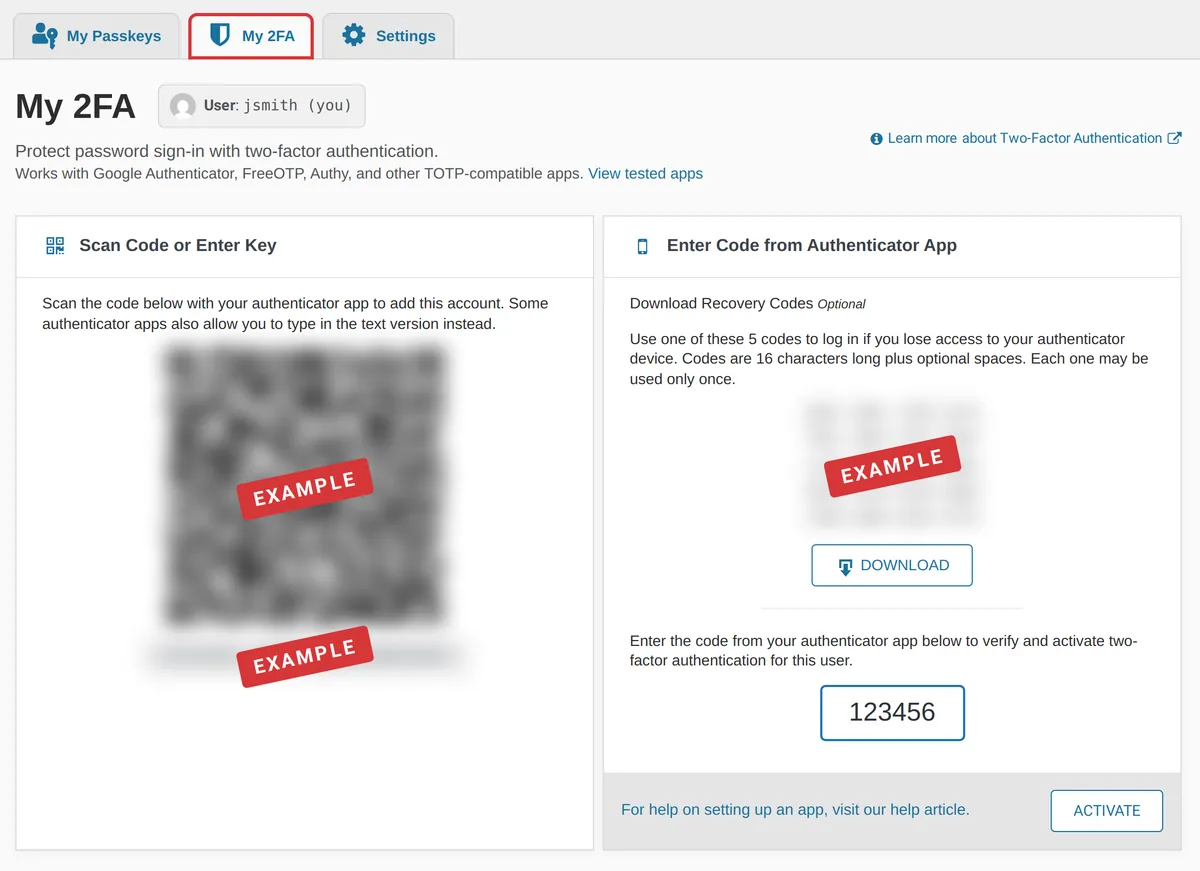
- Open the Login Security screen. Administrators find it in the left-hand menu under Wordfence > Login Security. Editors see Login Security on its own. The quickest route for anyone is to add
/wp-admin/admin.php?page=WFLSto the end of your site’s address. Once you’re there, choose the My 2FA tab. - Open your authenticator app, tap the button to add an account, and scan the QR code on the screen. If scanning doesn’t work, most apps will let you type in the text key shown with the code instead.
- Before you activate anything, save your recovery codes. They’re right next to the QR code. Click Download and keep the file somewhere safe that isn’t your phone (more on that below).
- Type the six-digit code your app is showing into the box and click Activate.
That’s it. From now on, WordPress will ask for a code after your password. Open the app and type in whichever code is showing. They change every 30 seconds, so there’s nothing to remember.
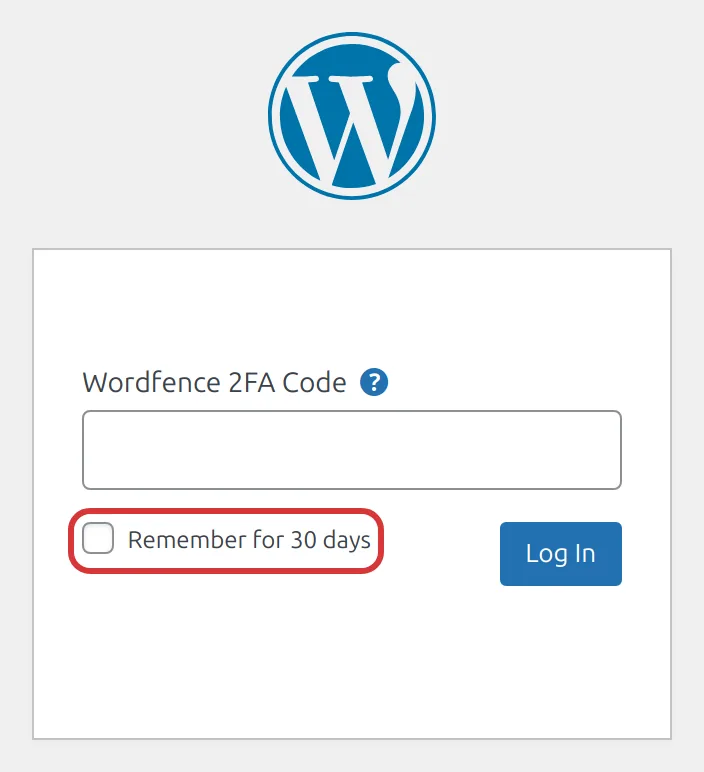
On the code screen there’s also a Remember for 30 days checkbox. Tick it on your own computer and you won’t be asked again there for a month. Leave it unticked on a shared or public computer.
Recovery codes: the step everyone skips
Wordfence gives you five recovery codes. Each is 16 letters and numbers long, and each works exactly once in place of a code from your app. They’re how you get in when your phone is dead, lost, or sitting in a drawer at home.
Keep them somewhere that isn’t your phone. An entry in your password manager works, and so does a printed copy in a locked drawer at the office. A screenshot in your camera roll doesn’t, because it disappears along with the phone it was supposed to back up.
What to do if you lose or replace your phone
The best fix for a lost phone is the one you set up before you need it. Most authenticator apps can back up your codes, so on a new phone you sign in and everything comes back. In most of them, though, backup is a setting you have to switch on. Here’s how it works in the common ones:
- Google Authenticator syncs your codes to your Google account once you sign in to the app. On a new phone, sign in with the same account and your codes come back.
- Microsoft Authenticator has a backup setting you need to turn on. It restores iPhone to iPhone and Android to Android only, so switching between the two means setting your codes up again.
- Authy offers encrypted backups protected by a backup password you choose. Write that password down somewhere safe. Twilio, which makes Authy, can’t reset it, and the backup is useless without it.
- 1Password and Bitwarden keep your codes in your vault, which syncs to every device you sign in on. Bitwarden needs a Premium plan to generate codes.
Getting a new phone while the old one still works is easy even without a backup. Most apps, including Google Authenticator, Microsoft Authenticator, and Authy, can transfer your accounts straight to the new phone. Do that before you wipe the old one.
If the phone is gone and there’s no backup, your recovery codes are the way back in. Log in with your password, then enter one recovery code where the six-digit code would normally go. Once you’re in, go to Login Security, deactivate 2FA, and set it up again on your new phone. That gives you a fresh set of recovery codes, too.
No phone, no backup, and no recovery codes? Contact us. We’ll confirm it’s really you and reset your account so you can set up 2FA from scratch.
Shared logins have to go
Plenty of organizations share one admin login among several people: one username, one password, five people who know it. Two-factor authentication ends that arrangement, because the codes come from a single device. Either that phone gets passed around the office, or nobody gets in.
We’re treating that as a feature. Everyone who works on your site should have their own account, with the lowest role that lets them do their job. You can see who changed what, and when someone leaves, you remove one account instead of changing a password that six people have memorized. If you need to set those accounts up, here’s how to add a user to WordPress, with the roles explained. And when someone moves on, you can safely delete WordPress users without losing anything they wrote.
The rollout for E11 clients
Every client gets an email from us with the exact dates for their site. Nothing changes the day it arrives, and you can turn on 2FA any time. Two weeks later, 2FA becomes required for administrator and editor accounts, and anyone who hasn’t set it up will be asked to the next time they log in. Two weeks after that, the grace period ends.
Once it does, an administrator or editor account without 2FA can’t log in. WordPress will show a message telling you to contact the site administrator, which is us, and we’ll help you finish setup. It’s much easier to do it now, while it’s optional, than to email us later from a locked login screen.
The email also lists every administrator and editor on your site. If some of those accounts belong to people who’ve left or vendors you no longer work with, reply and tell us. We’ll remove them and move their content to an E11 account, so nothing on the site is lost.
Every new site we launch will have 2FA on from day one. It’s part of how we run hosting and maintenance for our clients, alongside updates, backups, and security monitoring.
WordPress two-factor authentication FAQ
Will I have to enter a code every time I log in?
Only if you want to. Tick Remember for 30 days on the code screen and that computer won’t ask again for a month. Don’t tick it on a shared or public computer.
Which authenticator app should I use?
Any app that generates time-based codes works. Whichever you choose, turn on its backup so a lost phone doesn’t lock you out. If your organization already pays for 1Password or Bitwarden Premium, use that, since the codes live with your login and sync between devices. Otherwise, Google Authenticator and Microsoft Authenticator are both free.
What if I don’t have a smartphone?
Some password managers, including 1Password, can generate codes on a desktop computer. If that won’t work for you either, get in touch and we’ll figure out an option together.
Do authors and contributors need 2FA?
Not on E11 client sites. The requirement covers administrators and editors, the two roles that can change content across the whole site. Donors, members, and subscribers aren’t affected.
Will 2FA break our forms, integrations, or plugins?
No. Two-factor authentication applies to people logging in. Connected services that use application passwords or API keys keep working.
Does two-factor authentication slow down my website?
No. It only changes the login screen. Your visitors never see it.
My site isn’t hosted with E11. Can I still turn on 2FA?
Yes. The free version of Wordfence includes two-factor authentication and lets you require it by role. Set it up on your own administrator account first, then require it for administrators and editors and give everyone a grace period to get set up. If you’d rather someone else handle it, along with the rest of your site’s upkeep, that’s what we do.